Straight to the screen
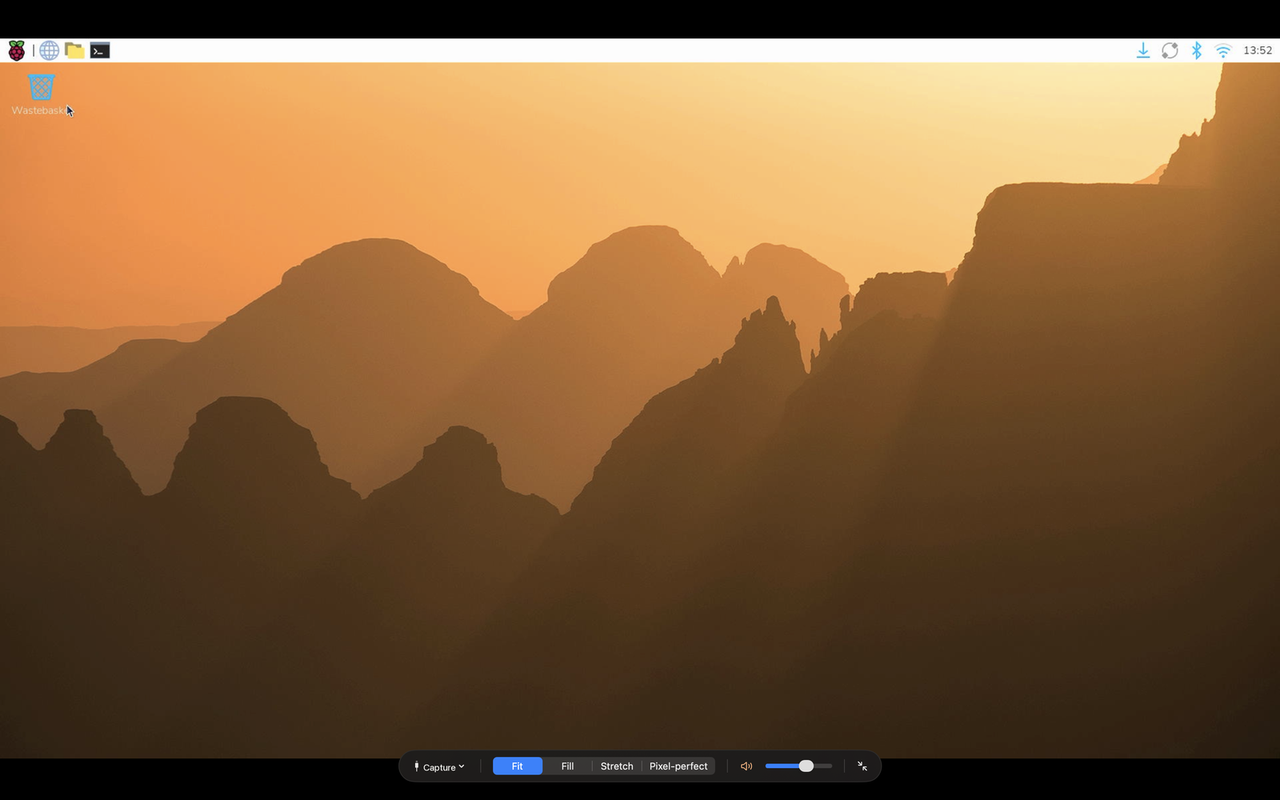
Frames go from the capture device to a Metal layer and are drawn as they arrive. Late frames are dropped, never queued.
A monitor app for Mac and iPad
Plug an inexpensive HDMI-to-USB capture device into your Mac or a USB-C iPad, plug your console, camera or board into that, and Screenjack shows the picture full screen with sound. If it has HDMI out, it fits on your screen.

What you need
Screenjack is software. The picture comes in through a small, inexpensive HDMI-to-USB capture device that plugs into your Mac or a USB-C iPad. Here is the whole chain, and every device on the wheel works the same way.
Your deviceGame console
You already own it
HDMI cablenothing special
The cable you have
Capture deviceHDMI in, USB out
The one thing to buy
Your Mac or iPadmacOS 14 or iPadOS 17, USB or USB-C
Screenjack runs here
Game console, docked handheld, single-board computer, laptop, camera, mini PC, or a streaming box that is not copy-protected.
Nothing special. The cable that came with the device is fine.
A small adapter with HDMI in and USB out, sold everywhere for not much. Up to 1080p at 60 fps with a USB 3.0 capture device. USB 2.0 models cost less, trade a little resolution or frame rate, and are fine for most uses.
A Mac on macOS 14 or later with a USB port, or a USB-C iPad on iPadOS 17 or later. A USB-C adapter or hub is fine on the Mac.
What it does
No recording, no snapshots, no filters, no streaming, no accounts, no network. Screenjack draws the picture, plays the sound, and stays out of the way.
Frames go from the capture device to a Metal layer and are drawn as they arrive. Late frames are dropped, never queued.
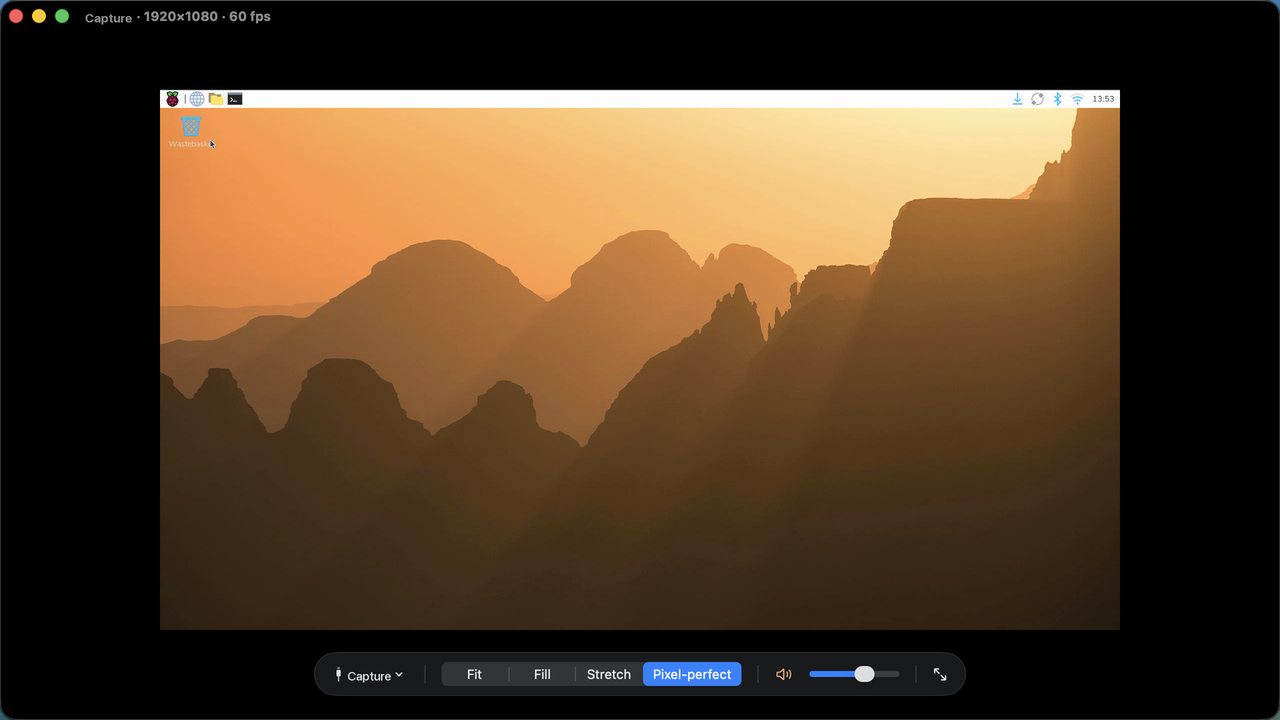
Fit, Fill, Stretch, and Pixel-perfect: whole-number scaling with no smoothing, made for retro consoles and low-resolution boards.
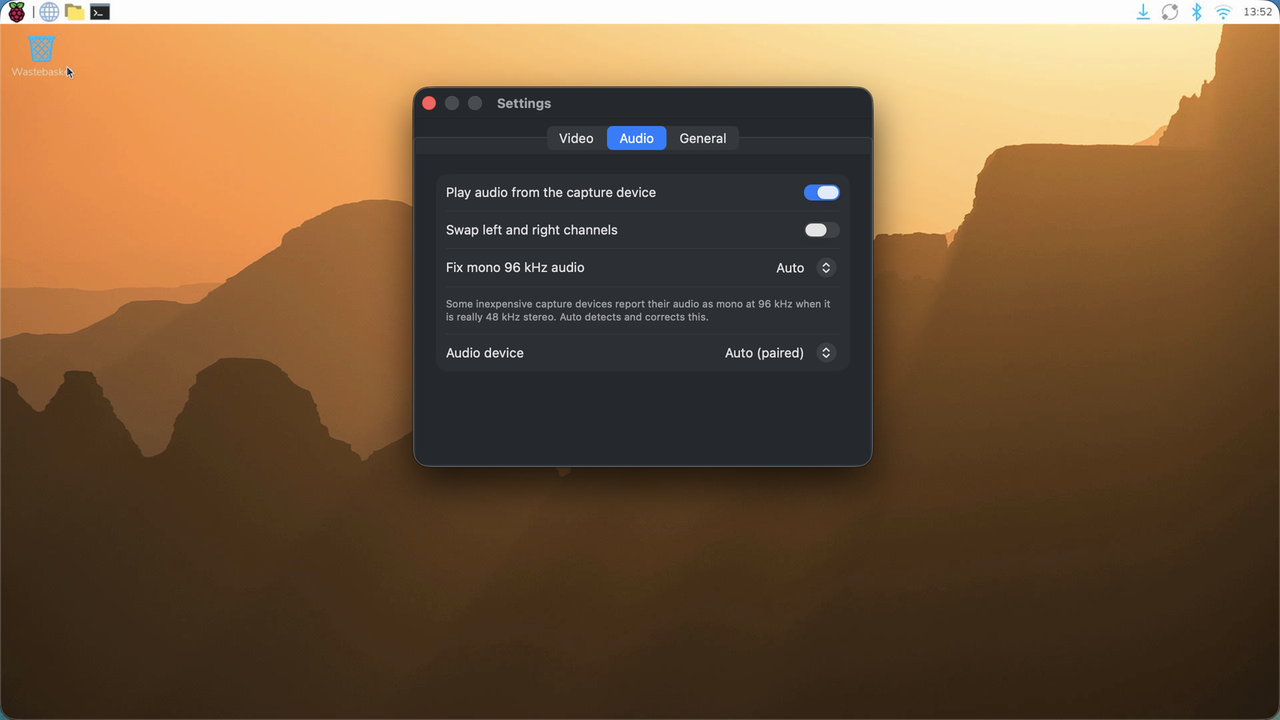
Audio passes straight through with a small buffer. Inexpensive USB 2.0 sticks that report the wrong format are fixed automatically, and you can swap left and right by hand.
Devices appear as you connect them. Your last device reconnects on its own, and unplugging shows a clear message instead of a frozen frame.
Pure black around the picture. The controls appear on demand and fade on their own. On the Mac the pointer hides over live video, with Float on Top and Lock Window to Aspect; on iPad the picture is always full screen.
Your Mac or iPad stays awake while video is showing, and rendering pauses when the picture is covered.
Auto picks the best format your capture device offers, or choose one yourself, remembered per device model. Color range Auto, Limited, or Full.
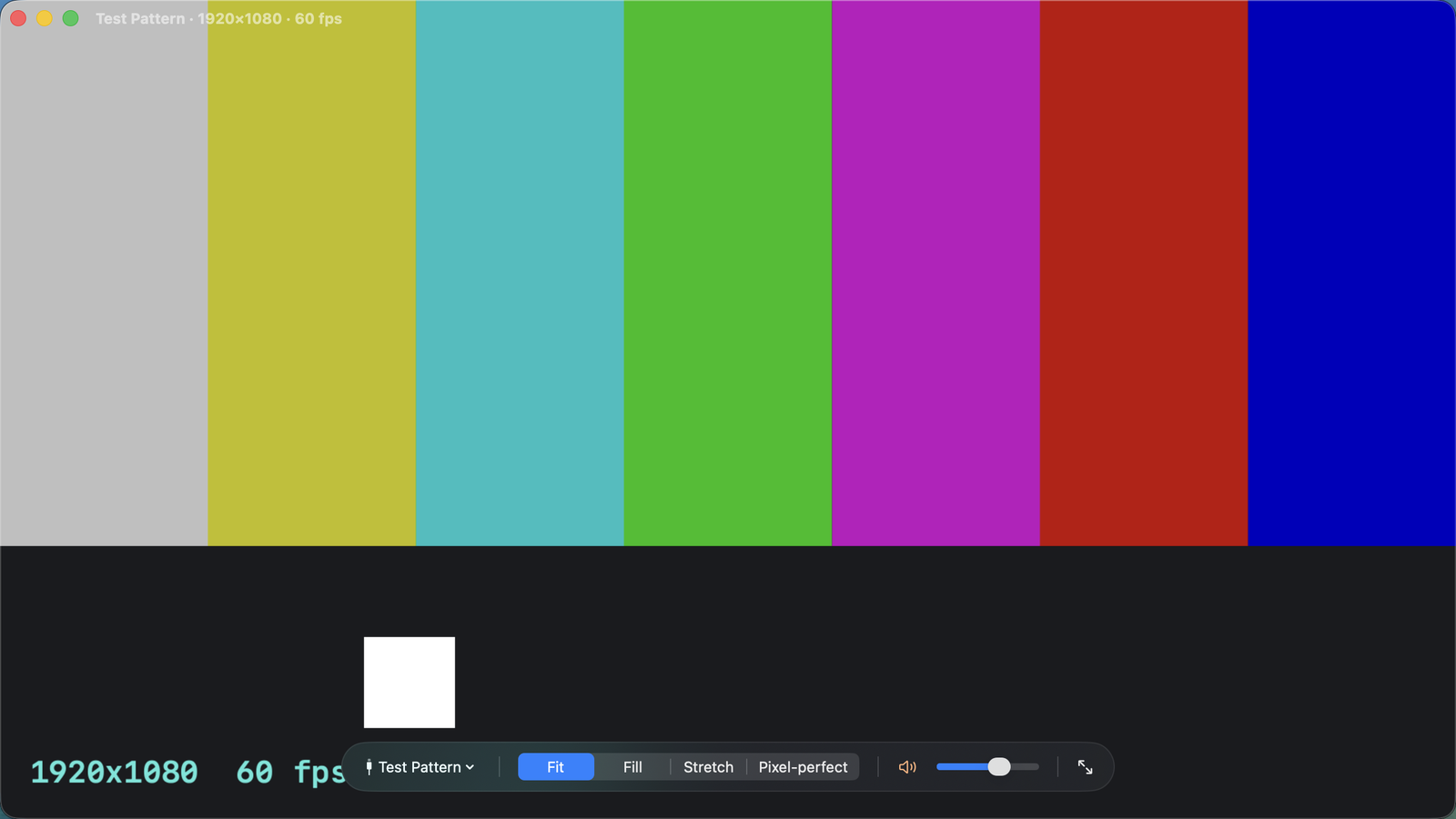
A built-in test pattern lets you explore the app before your capture device arrives, on the Mac or on iPad.
Keyboard on the Mac
Who plugs in
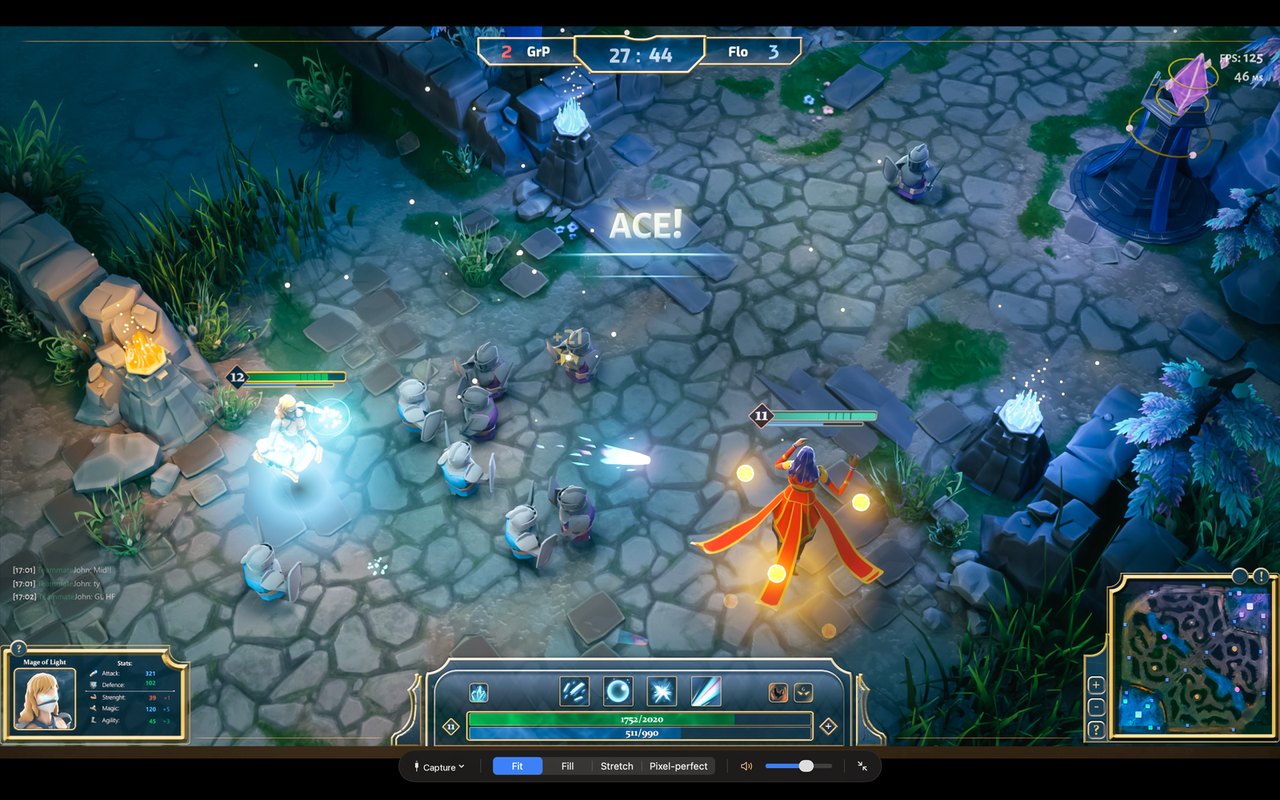
Play a console or a docked handheld on your Mac or iPad. Retro consoles at pixel-perfect scale, with stereo audio that works.
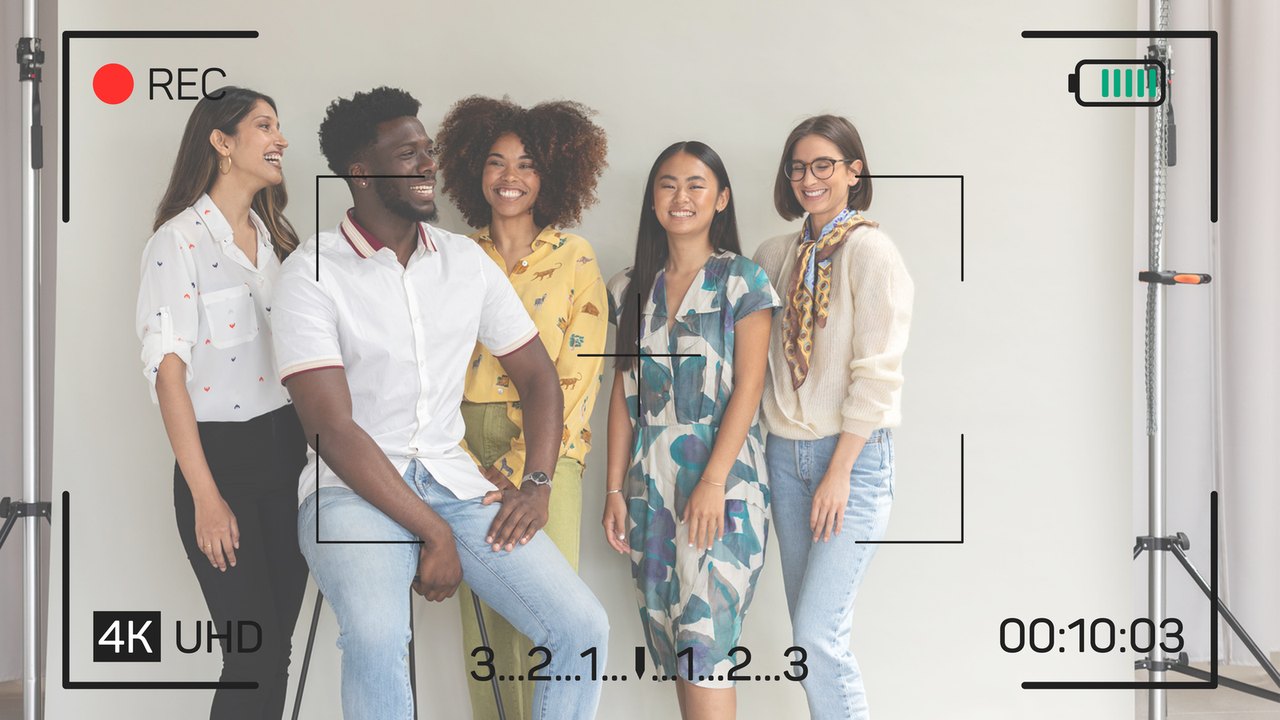
A big, clean live view for a camera with HDMI out. Framing, focus, and a screen you can turn toward a client.
Set up and debug a single-board computer, a mini PC, or a headless box without a spare monitor. Boot screens show too, because it is plain HDMI.
A second laptop or device on a small desk, in a hotel room, or anywhere a spare display is not an option. On iPad it travels in a bag.
A clean preview of a second device, with nothing drawn on top of the picture.
Permissions, honestly
macOS and iPadOS treat a capture device as a camera, and its audio as a microphone. That is the only way any app can read the signal, so Screenjack asks for exactly those two permissions, each at the moment it needs it.
Entitlements: sandbox, camera, audio input. That is the full list.
Good questions
Almost always because the source is copy-protected (HDCP). Screenjack shows a hint when it sees this. Game consoles usually let you turn HDCP off in their video or HDMI settings. Streaming boxes and protected video apps generally do not, and those will stay black. If HDCP is off and it is still black, lower the source's resolution or refresh rate; see Help.
Any HDMI-to-USB capture device that your Mac or iPad sees as a camera. Up to 1080p at 60 fps with a USB 3.0 capture device. USB 2.0 models cost less, trade a little resolution or frame rate, and are fine for most uses. We do not recommend specific models, and you do not need an expensive one.
Bluetooth headphones and speakers add a noticeable audio delay of their own, which no app can remove. For gaming, wired output or the built-in speakers keep the sound in step with the picture.
No. Screenjack shows the picture and plays the sound, and that is all. There is no recording, no snapshots, no streaming, no filters, and no network access.
Yes. Open the built-in test pattern (the Help menu on the Mac, or the button on the start screen on iPad) to explore the window, the aspect modes, and the controls without any hardware.
Any Mac on macOS 14 or later with a free USB port, or a USB-C iPad on iPadOS 17 or later. A USB-C adapter or hub works fine on the Mac.
It is the same app and the same picture. The iPad needs a USB-C model on iPadOS 17 or later, the controls are by touch instead of the keyboard, and the picture is always full screen. Everything else, including the aspect modes and audio, works the same way. On the entry-level iPad, whose USB-C port runs at USB 2.0 speed, expect a little less resolution or frame rate than a Mac gets from the same capture device.
Screenjack is one app for Mac and iPad, on macOS 14 or iPadOS 17 or later. Add a small capture device, and it shows anything with HDMI out, sound included.